How a Computer Runs Programs
A student presses the power button on a school laptop a few minutes before first period. About twenty seconds later a sign-in screen appears, and in that time the laptop has started dozens of programs. Nobody clicked any of them. Many of the attacks in this unit go after one of those programs, or the steps that start them, so it helps to know what they are.
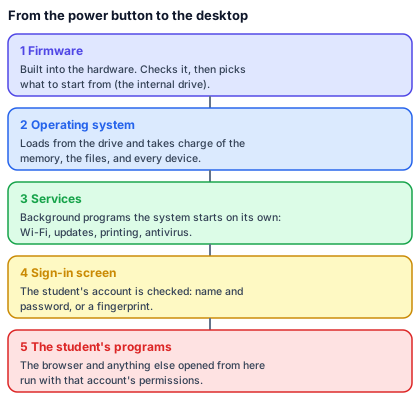
Starting up
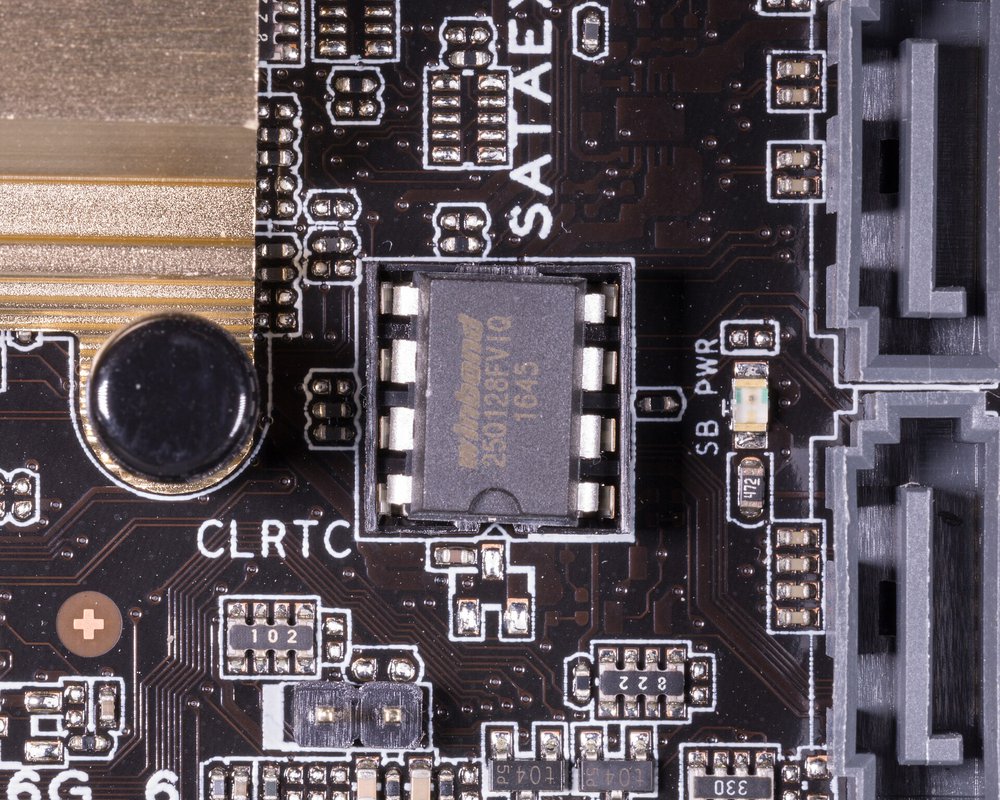
The first program to run is the firmware, a small program stored on a chip in the laptop itself. It checks that the memory and the drive answer, then reads a setting that says where to find the operating system, usually the laptop's own drive. Change that setting and the laptop can start from a USB drive instead, so the firmware's settings can have a password of their own. The settings sit in a small memory on the main board. On many desktop computers, two pins on the board clear that memory, password included, so the password holds only as long as nobody opens the case.
Next comes the operating system, Windows, macOS, ChromeOS, or Linux. It is the program in charge of all the others. It hands out memory, decides which program gets the processor next, keeps the files, and is the only program allowed to talk to the hardware directly. Every other program asks it for what it needs.
Programs, files, and processes
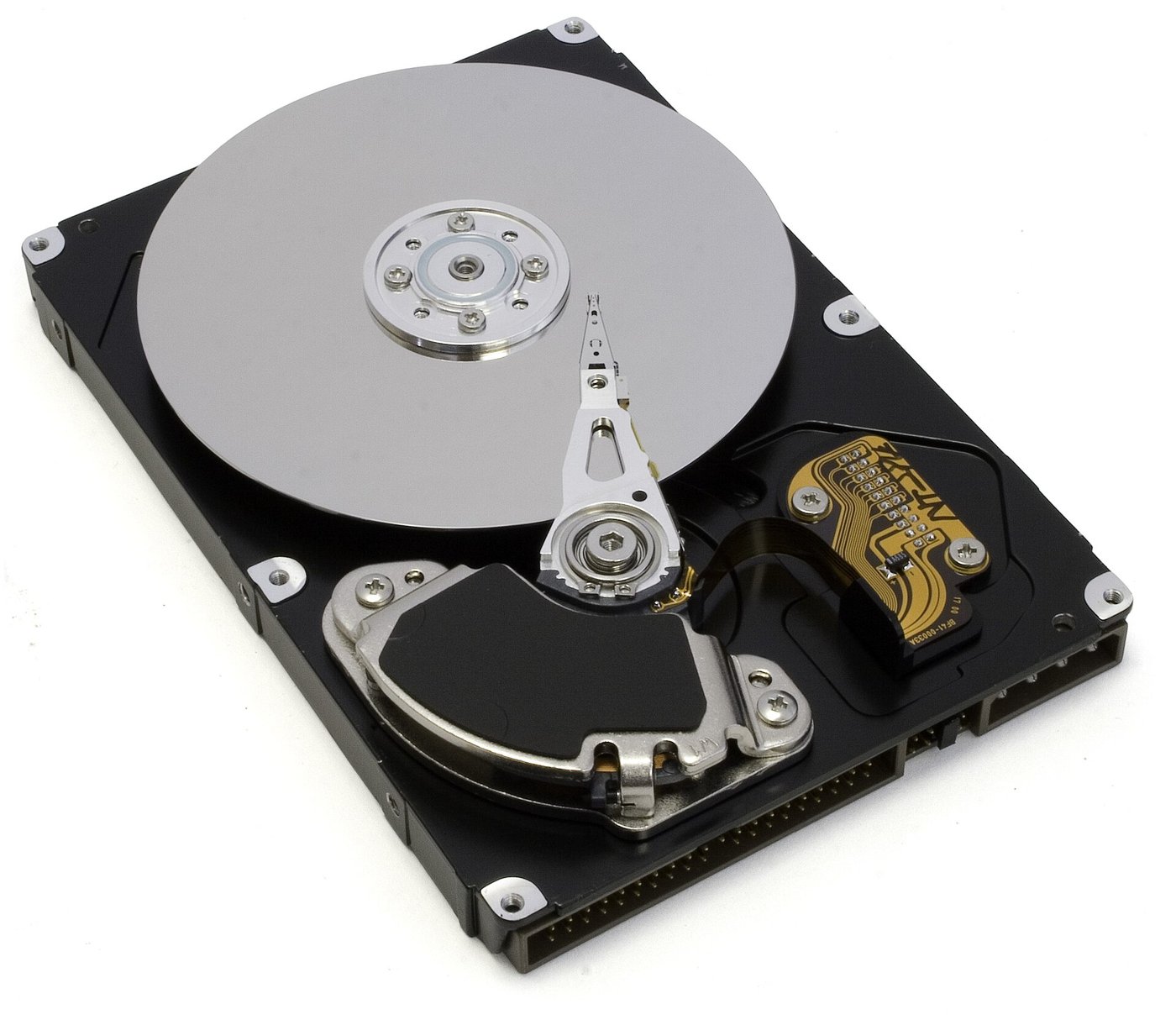
A program sits on the drive as a file, the way a document does. Notepad, for example, is the file C:\Windows\System32\notepad.exe, and that full location is its path. When the program starts, the operating system copies it from the drive into memory, the fast working space that empties when the power goes off, and runs it. That running copy is a process, and one program can run as several processes at once.
Many processes have no window, and a lot of them start before anyone signs in and run in the background: one keeps the Wi-Fi connected, one checks for updates, and one waits for print jobs. These background programs are services. An update is a fixed version of a program, sent by its maker to close flaws found after release; a small one is called a patch. Each program also keeps settings, such as which network to join or which updates to take. Windows keeps most of them in a large database called the registry; other systems keep them in settings files. The system also records what happens, such as sign-ins, installs, and failed services, in logs.
Accounts and permissions
Every process runs as some account, and the account sets what it may do. Here is part of the list of running processes on the student's laptop a minute after sign-in, the kind Windows shows in Task Manager.
| Process | What it is | Runs as |
|---|---|---|
| Web browser | The program the student opened | the student's account |
| Wi-Fi service | Keeps the laptop on the school network | SYSTEM |
| Update service | Downloads and installs updates | SYSTEM |
| Antivirus | Scans files as they are opened | SYSTEM |
| Music app | Started by the student | the student's account |
The student's account is a standard one, the kind schools give students. Look down the Runs as column and find the processes the student could stop from Task Manager.
The student can stop the browser and the music app, the two running under the student's own account. The other three run as SYSTEM, the operating system's own account, which has more power than any person's. Stopping or changing them takes an administrator account, the kind the school's technology staff hold. That limit is the point: a program the student runs, including one the student was tricked into running, gets only what the student's account can do, unless it finds a flaw that allows it to climb higher.
McAfee's 2010 update
Many Windows services don't run as a process of their own. Their code sits in a library file, and they run inside a shared process called svchost.exe, short for service host, and on a typical computer several copies of it are running at once. On April 21, 2010, McAfee sent its antivirus customers an update to its list of known malware. On computers running Windows XP Service Pack 3, the update wrongly matched svchost.exe to a virus and quarantined the file, locking it away where it couldn't run, or deleted it. What would those computers lose?
They lost the services that run inside it. Networking stopped, and many computers began restarting over and over. With networking gone, McAfee's fixed update couldn't reach them, so at many companies technology staff went from desk to desk. On each computer they started Windows in safe mode, which loads only the most basic services, copied in McAfee's corrected detection file from a USB drive, and put svchost.exe back, work that took an administrator account. Each computer's antivirus log held the same entry: svchost.exe, detected as W32/Wecorl.a by update 5958. Intel, hospitals in Rhode Island, a police department in Kentucky, and the University of Michigan's medical school were among those hit. McAfee apologized, said that a change in its testing had let the update through without being tested on Windows XP Service Pack 3 running its current business antivirus, and offered to repay home users for repairs.
Sources: SANS Internet Storm Center, "McAfee DAT 5958 Update Issues" (April 21, 2010); Brian Krebs, "McAfee False Detection Locks Up Windows XP," KrebsOnSecurity (April 21, 2010); McAfee, apology and remediation notices (April 22-26, 2010); Dark Reading and Computerworld coverage (April 2010).