The Bitmap: Pixels, Colour and Resolution
Bitmap
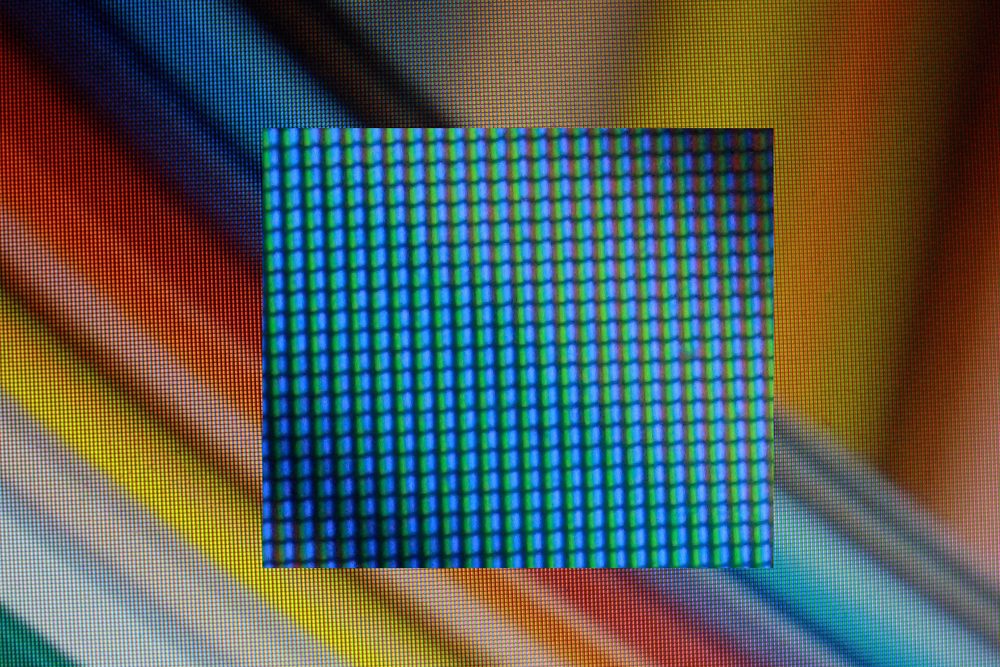
An image is a 2D grid of squares (a bitmap), where each square is filled with only one colour. This kind of structure is called a raster graphics image.Each of these small squares, called a pixel, can be filled with exactly one colour. That rule is stricter than it sounds. A pixel does not hold a pattern, a texture, or a shade that changes across it. One pixel, one colour, and every bit of detail an image has comes from having enough pixels to spend.
Additive colour mixing
Computers use additive colour mixing to produce colours. The primary colours are red, green and blue (RGB).Additive means the three components are lights being added to each other, not paints being stirred together. That is why the mixing rules below look wrong to anyone who last mixed colours with poster paint: adding all three at full strength gives white, and adding none of them gives black.
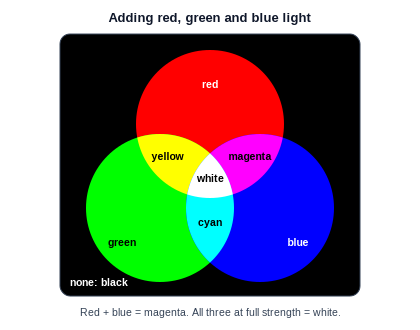
| Components added | Colour produced |
|---|---|
| Red + green | Yellow |
| Red + blue | Magenta |
| Green + blue | Cyan (blue-green) |
| Red + green + blue | White |
| No colours | Black |
24-bit colour
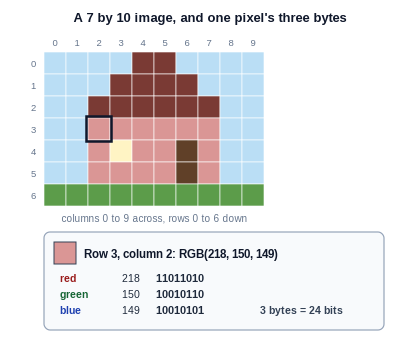
Typically, bitmaps use 24-bit (3 bytes) for colours.• 8 bits for each of the three primary colours.
• Each colour has values 0 to 255.
• 24 bits gives 2 to the 24th power different colours, which is approximately 16.8 million.
Those three lines are one idea said three ways. A pixel is given three bytes. One byte goes to red, one to green, one to blue. A byte holds a whole number from 0 to 255. So each component is a strength running from none at all up to as much as the display can give.
Rows, columns and three components
The house image is 7 rows by 10 columns, and every one of its pixels keeps three components. So the whole thing is 7 rows, 10 columns and 3 colour components.That is 7 x 10 = 70 pixels, and 70 x 3 = 210 bytes of pixel data. The three factors are the shape of every uncompressed bitmap there is.
The program below stores a tiny image as a list of rows. Each row is a list of pixels, and each pixel is a tuple of three numbers: red, green, and blue. It prints the pixels row by row and then works out the formula above. Run it, then change it and run it again:
• Add a third row to
image by copying one of the rows, comma included.• Add one more pixel, such as
(0, 0, 0), to the end of every row, just inside its closing ].• Change the three numbers of one pixel to any other values from 0 to 255.
# Each pixel is (red, green, blue), and each row is a list of pixels
image = [
    [(250, 170, 70), (110, 70, 140), (250, 170, 70)],
    [(110, 70, 140), (250, 170, 70), (110, 70, 140)],
]
bytes_per_pixel = 3

for row in image:
    for pixel in row:
        print(pixel, end=" ")
    print()

height = len(image)
width = len(image[0])
print("Resolution:", width, "by", height)
print("Pixels:", width * height)
print("Bytes of pixel data:", width * height * bytes_per_pixel)
Output
Press Run to see what this program prints.
Note: This IDE is for experimenting with the code in this lesson. Your changes are not saved, and refreshing the page puts back the original lesson code.
Resolution
A raster graphics image has to be made up of a grid of squares, but how big should each square be?The resolution of an image is the number of pixels in its grid, given as width by height. Those are the first two factors in the formula above. More pixels can hold more detail, so resolution also measures how much detail the image can store.
• Same image size but smaller pixel size equals higher resolution (more detail), and therefore a larger number of pixels in the image.
• For example, the figure below draws one icon at three resolutions, from 16 pixels by 16 pixels up to a much higher 128 by 128.
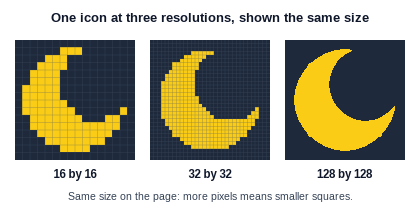
At 16 by 16 the crescent is a coarse mosaic and its curved edges are staircases. A curve has to be approximated out of whole squares, and there are only sixteen of them to cross the image with. At 128 by 128 the squares are small enough that the eye stops seeing them at all. The icon is the same size on the page in all three. Only the squares got smaller, and so there had to be more of them.